How to read Kindle manga as a two-page spread
Whether Kindle manga shows as a two-page spread depends on the device and a few settings.
This page covers how to get the spread on each device, what to check when it does not appear, and how to use two phones or tablets you already have to read at the size of the printed book.
By device: how far Kindle two-page view goes
| Where you read | Two-page view | Size of the spread | Notes |
|---|---|---|---|
| iPhone / Android phone Kindle app |
Two pages in landscape | Each page under 3 inches wide | Fixed-layout books (comics) only. Text is small |
| iPad / Android tablet Kindle app |
Two pages in landscape | About paperback size on 10 inches | Rotation lock must be off |
| PC Kindle for PC / Mac |
Windows: toggle in display options. Mac: always two pages | Depends on the monitor | Reflowable (text) books do not spread |
| Browser Kindle Cloud Reader |
Two pages by default at desktop width | Depends on the monitor | Comics and magazines only |
| Kindle e-reader Paperwhite, Scribe, etc. |
Two pages in landscape mode | One page is small on 6 to 7-inch models; about paperback size on the 11-inch Scribe | Open a book and switch to landscape mode from the menu. Reads Kindle Store books only |
| Two phones or tablets (MIHIRAKI) | One spread across two devices, held at an angle like a book | Paperback size with two phones, magazine size or larger with two tablets | Splits Kindle Cloud Reader across two devices. Reads the comics you already own |
The Kindle app alone can show a spread, but it splits one screen in half, so each page gets small. Reading at print size takes two screens.
What a spread across two screens looks like
Give My Regards to Black Jack / SHUHO SATO
What to check when two-page view will not show
- Rotation lock is on
- The most common cause on iPad and phones. Turn off rotation lock in Control Center (the lock-with-arrow icon), then turn the device sideways.
- The book is not fixed-layout
- Only fixed-layout books such as comics and magazines can show two pages. Novels and business books (reflowable) stay single-page in landscape.
- The phone app is set to vertical scrolling
- Tap the middle of the page, tap "Aa" at the top right, and turn off "Vertical scrolling" under Layout. Landscape then shows two pages.
- PC app stays on one page
- In Kindle for PC (Windows), open View, then Display options, and slide "Page width" to the right. The Mac app is always two-page and switches to one page when the window is narrow.
- The pages are offset (page 1 is not on the right)
- This comes from the book data and usually cannot be changed in the Kindle app. MIHIRAKI has a spread offset setting that shifts by one page to line them up.
A phone in landscape makes a small spread
Turn a 6-inch phone sideways for two pages and each page is under 3 inches wide, smaller than a printed page (about 4.3 inches). You have to zoom to read the dialogue, and a double-page illustration loses its impact.
Foldable phones, large tablets, and two devices side by side are compared on a separate page.
Read the Kindle manga you already own at print size on two phones
The free MIHIRAKI app shows the browser version of Kindle Cloud Reader split across two devices and keeps the page turns in sync. One device is the right page and the other the left, so placing them side by side gives you the same spread as the printed book.
Sign in with your Amazon account and read the comics you already own, including Kindle Unlimited titles. Nothing to buy again.
- Costs nothing. A spare or used phone works as the second device.
- iOS and Android can be mixed. An iPad with an Android tablet is fine too.
- Paperback size with two phones, a weekly magazine or larger with two 10-inch tablets.
- Spread offset included. Books whose pages are offset can be shifted by one page to line up.
- Works with Kindle comics (manga). The MIHIRAKI library shows comics only; magazines and novels are not supported.
Steps: Kindle manga as a spread on two phones
-
STEP 01
Install MIHIRAKI on both devices
Free on the App Store and Google Play.
-
STEP 02
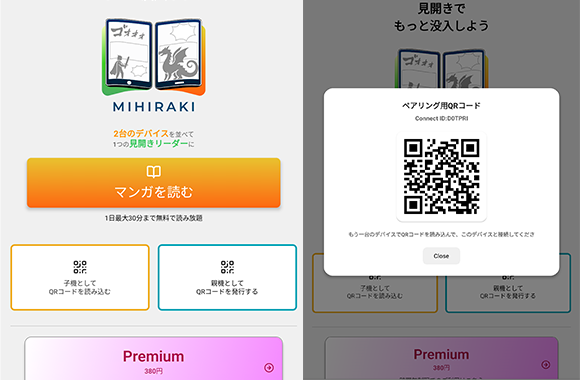
Link the two with a QR code
Choose "Show QR Code" on one device and "Scan QR Code" on the other. The device showing the code becomes the right page, the one scanning becomes the left page.
-
STEP 03
Pick Kindle on the parent device and sign in
On the parent device (right page), choose Kindle from the service list and sign in with your Amazon account. Open a manga from your library.
-
STEP 04
Turn the pages
The child device follows automatically and the two form one spread. If the pages are offset, use "Spread offset" in the menu.
FAQ
- Does it work with Kindle Unlimited books?
- Yes, for Kindle Unlimited comics (manga). The MIHIRAKI library shows comics only; magazines and novels are not supported.
- Can a Kindle e-reader (Paperwhite) be the second device?
- No. MIHIRAKI is an app for phones and tablets (iOS / Android). On its own, a Kindle e-reader can show two pages in landscape mode, but one page is small on 6 to 7-inch models.
- The left and right pages are offset.
- That comes from the book data. Use "Spread offset" in the MIHIRAKI menu to shift by one page and line them up.
- Is it free?
- The basics are free. The free plan shows ads and allows up to 30 minutes of spread reading per day. Premium ($2.99/month) removes the limit and the ads. Kindle books are purchased separately.
Nothing to buy again. Your Kindle books, as a spread on two devices
The app is free. Install it on both devices, scan a QR code, and sign in with your Amazon account.
Download for free and enjoy the two-page spread experience