使い方ガイド
MIHIRAKIの基本的な使い方をご紹介します。
アプリをインストール
まずは、端末2台にそれぞれ「MIHIRAKI」アプリをインストールしてください。
iOSとAndroidの組み合わせでもご利用いただけます。
ペアリング(同期)
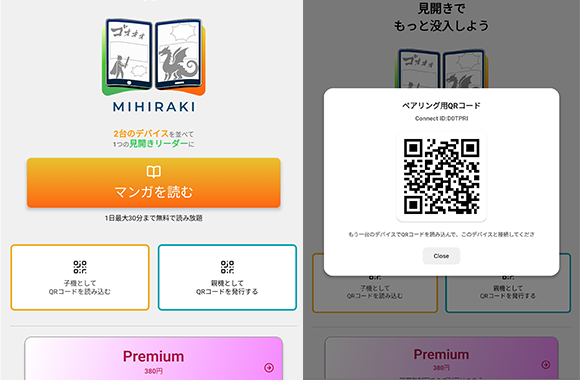
2台の端末でアプリを起動し、片方の端末で「QRコードを表示」、もう片方の端末で「QRコードを読み取る」を選択します。
読み取りが成功すると、自動的にペアリングが完了します。
※QRコードを表示する端末が親機(右)、QRコードを読み取る端末が子機(左)となります。
親機でマンガを開く
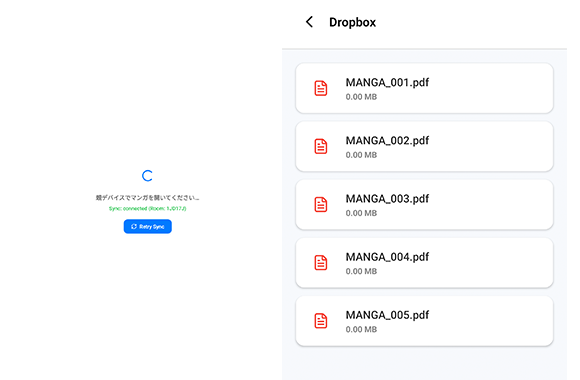
メインで操作したい方の端末(親機)でマンガを開きます。
親機がマンガを開くと子機が同期され、自動的に見開きでマンガが表示されます。
大画面で見開き体験
ページをめくると、もう片方の端末(子機)が瞬時に連動し、次のページを表示します。
2台並べることで、まるで本物の見開きマンガのような迫力ある読書体験が可能になります。
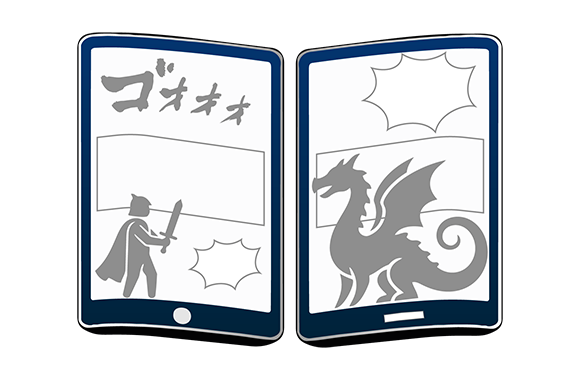
ビューアーの基本操作
① 見開きの中央付近(両デバイス)をタップすると、それぞれのデバイスのメニューの表示/非表示を切り替えます。
② 子機(左デバイス)の左側をタップすると次のページへ進みます。
③ 親機(右デバイス)の右側をタップすると前のページへ戻ります。
④ タップすると各種操作のオプションメニューが表示されます。

オプションメニュー
① 表示されるスライダーで任意のページにジャンプできます。
② 開いている作品の話一覧を表示します。
③ 作品によって見開きの位置がズレる場合に調整できます。
④ 画面を暖色にしてブルーライトを抑え、目の負担をやわらげます。
⑤ もしページがズレた場合はここをタップして調整します。
※オプションメニューは親機側の機能です(子機は再読み込みのみ)。

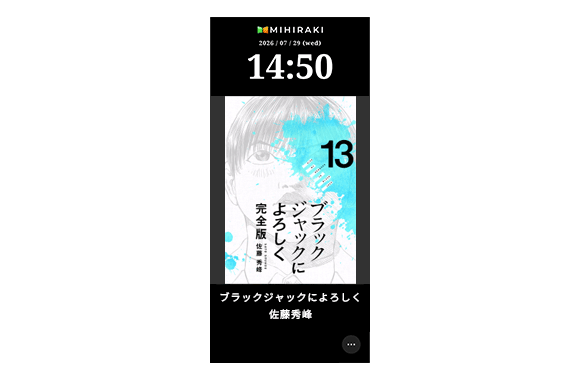
MIHIRAKI CLOCK(端末1台でOK)
ホーム画面の「MIHIRAKI CLOCK」ボタンから起動できます。
右下の「…」メニュー →「時計の設定」で作品名を検索して保存すると、お気に入りの表紙が自動で切り替わる置き時計になります。
切替時間・表示順・ナイトモードもここで設定できます。
※画面が消灯しない全画面表示のため、充電しながらのご利用がおすすめです。